AI Automation Article
How to Connect Your Website Forms to Your CRM Without Losing a Single Lead
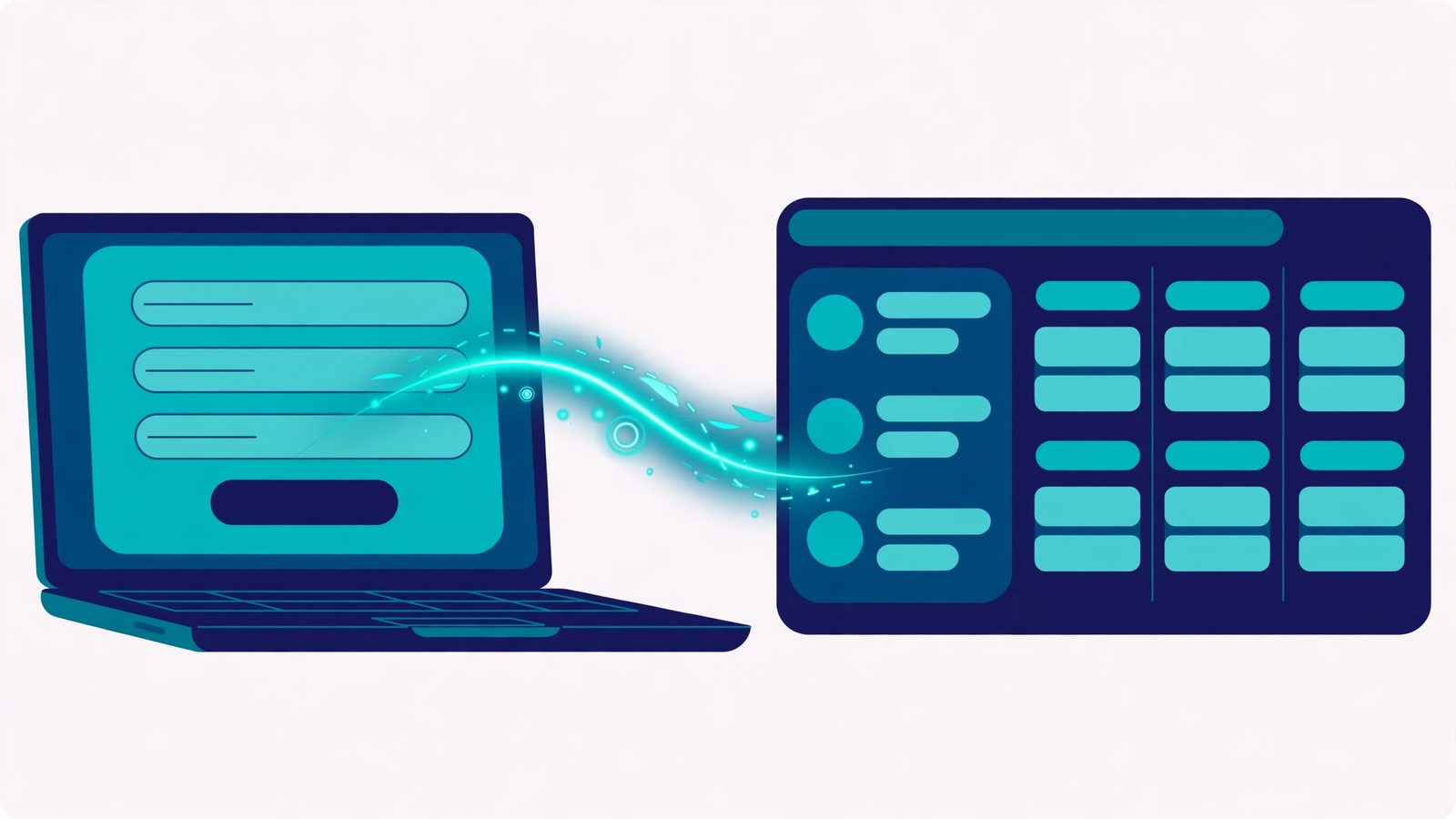
Every enquiry that lands in your inbox but never reaches your CRM is a lead you paid for and then lost. The visitor did everything right — they found your site, read your offer, filled in the form — and then the connection between the form and your CRM quietly dropped them.
This happens more often than most businesses realise, because the break is invisible. The form still shows its "thank you" message, so the visitor thinks everything worked. Your team sees nothing, so they do not know anything went wrong. The lead simply never existed.
Connecting your website forms to your CRM is not a technical luxury. It is the difference between a pipeline you can work and a pile of missed chances.
Why form-to-CRM connections break
Most breaks come from small, ordinary causes rather than big failures.
A field name changes in the form but not in the CRM, so the data has nowhere to go. A required field in the CRM has no matching field in the form, so the whole submission is rejected. A form plugin updates and the integration quietly disconnects. Or the form was never connected at all — it sends an email, someone was meant to copy the details into the CRM, and on a busy week nobody did.
The pattern is always the same: the visitor sees success, the business sees nothing.
What a good connection looks like
A good form-to-CRM connection has four qualities.
First, every submission creates or updates a contact in the CRM automatically, within seconds. Second, every field lands in the right place — name to name, email to email, phone to phone, and the message itself saved on the contact record. Third, the contact is tagged or assigned so the right person sees it. And fourth, someone is notified the moment it arrives, so a hot enquiry does not sit unread until Friday.
If any of those four is missing, the connection is only half built.
Step 1: Map every field before you connect anything
Before you touch any settings, write down the fields on your form and the matching fields in your CRM, side by side.
Name, email, phone and message are the obvious ones. Then check the ones people forget: the service the visitor asked about, how they found you, the page they submitted from, and any consent checkbox. Each form field needs a home in the CRM. If a field has no home, decide now whether to add one in the CRM or drop the field from the form — do not leave it unmapped and hope for the best.
This one page of mapping is the whole job, really. Everything after it is just following the map.
Step 2: Connect the form to the CRM
There are three common ways to make the connection, and the right one depends on what you already use.
The simplest is a native integration: many form tools and CRMs connect to each other directly, with no extra software. If yours do, use it — it is the most reliable option and the easiest to maintain.
The second is an automation tool such as Make, which sits between the form and the CRM and passes each submission across. This is the flexible option: it works when there is no native integration, and it lets you add steps like tagging, routing or a notification. Our guide to building your first automation with Make walks through how that kind of connection is built.
The third is a webhook or the CRM's own form embed: the form sends its data straight to the CRM's receiving address. This is solid when it is set up well, but it needs someone comfortable with the technical side, and it is the easiest to break silently when something changes.
Whichever route you take, the rule is the same: one form, one connection, one destination. Two half-connected paths are how leads get duplicated or lost.
Step 3: Test it like a real customer would
Never trust a connection you have not tested end to end.
Fill in the form yourself, exactly as a customer would — a real name, a real email address you control, and a message with a detail you will recognise. Then check the CRM: did the contact appear, did every field land in the right place, was it tagged correctly, and did the notification arrive?
Then test the awkward cases: a very long message, a phone number with spaces, a name with an apostrophe. These are the submissions that break fragile mappings, and they are exactly the ones a real customer will send.
If you run a lead capture system, this test belongs in your regular routine, not just on launch day. Our lead capture workflow guide shows where the form-to-CRM step sits inside the full journey from visitor to booked call.
Step 4: Add a safety net for the leads that still slip through
- Even a good connection can fail - a service goes down, a password expires, a field changes. The difference between a business that loses leads and one that does not is a safety net.
Keep a copy of every submission somewhere outside the CRM, even a simple spreadsheet or a second email notification. Then check it against the CRM once a week: every row in the backup should have a matching contact. The week you find a mismatch is the week the safety net paid for itself.
A second safety net is a regular follow-up routine. A lead that reaches the CRM but is never contacted is lost just as surely as one that never arrived. Our guide to automating lead follow-up covers how to make sure every enquiry gets a reply.
Step 5: Route, tag and assign — so nothing sits unread
A lead in the CRM is only useful if the right person sees it. Set up simple routing: new enquiries go to the person who handles them, tagged by the service they asked about and the page they came from.
Keep the rules simple enough to explain in one sentence. Complicated routing breaks, and when it breaks, leads sit in a general pile that nobody owns. One owner per enquiry, and a notification the moment it arrives, is enough for most small businesses.
The mistakes that quietly lose leads
- Asking for too much on the form. Every extra field is a reason to abandon it, and a field nobody uses in the CRM is clutter. Ask for what you need to reply, nothing more.
- No confirmation to the visitor. If the visitor never hears back, they assume you are not interested — and they contact your competitor. A short automatic reply costs nothing and buys you time.
- Treating the form as finished once it works. Forms and CRMs both change. A quick monthly check — one test submission, one look at the CRM — catches breaks before they cost you a month of leads.
- Connecting the form but never checking the CRM. The connection is only half the system. Someone has to work the list it creates, every day.
Frequently Asked Questions
How do I know if my form is actually connected to my CRM?
Submit a test enquiry with a detail you will recognise, then look for it in the CRM within a few minutes. If it is not there with every field filled in correctly, the connection is broken or was never finished.
What if my form tool and my CRM do not connect directly?
Use an automation tool in between, such as Make, or the CRM's webhook or form embed. The connection does not have to be native — it has to be tested and monitored.
How often should I test the connection?
Once when you set it up, once a month after that, and every time either the form or the CRM is updated. A two-minute test catches a break before it costs you real enquiries.
Should every form on my site go to the same place in the CRM?
Not necessarily to the same place, but every form should go somewhere in the CRM, tagged by which form it came from. A contact form, a quote request and a booking form are different conversations — tag them so your team can tell them apart.
What is the single most common cause of lost form leads?
A form that sends an email and nothing else. Email gets buried, missed or filtered, and nobody notices. The fix is a direct connection to the CRM plus a backup copy of every submission, so a missed email can never mean a missed lead.
Bottom line: your website forms are the front door of your business. A form that is not connected to your CRM is a front door that opens onto an empty room — visitors walk in, and nobody knows they were there. Map the fields, connect the form, test it like a customer, add a safety net, and route every enquiry to an owner. Then every lead you earn is a lead you can actually follow up.
If you would like that whole journey built for you — forms, CRM, follow-up and booking in one connected system — take a look at the AI Lead Capture System. And if your CRM, email and calendar are not talking to each other yet, our systems integration service connects them into one workflow.