AI Automation Article
Make.com Scenarios Explained: How to Build Your First Automation
A Make.com scenario is the heart of automation in Make. It is a visual workflow that connects your apps, watches for something to happen, and then does the work for you — no code needed.
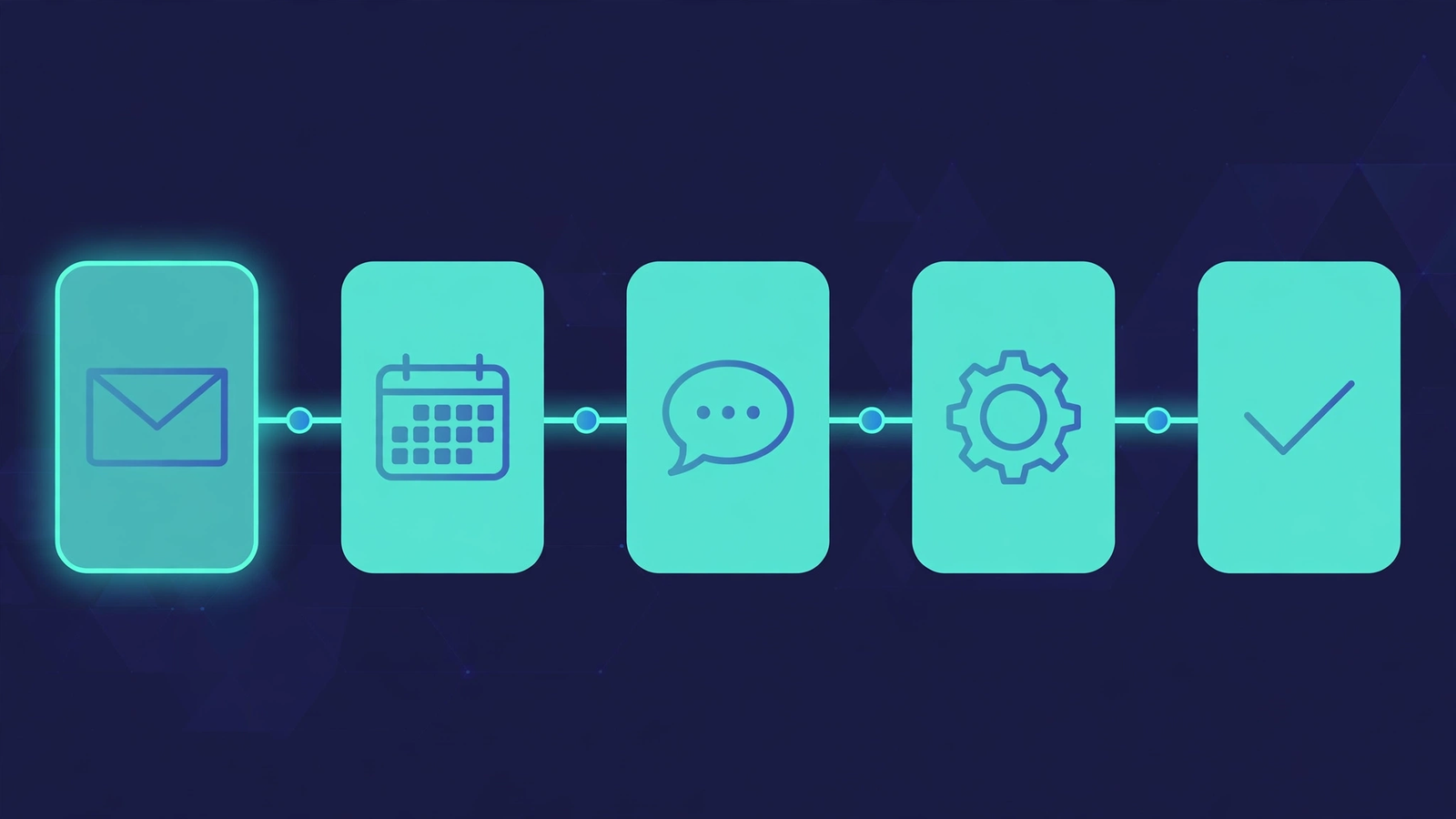
If you have used Make before, you have seen the canvas: a row of connected bubbles, each one an app or a step. If you have never opened it, the canvas can look confusing at first. This guide explains what a scenario is, how each part works, and how to build your first one without breaking anything.
What Is a Make.com Scenario?
A scenario is a single automation in Make. It starts when something happens — a form is submitted, an email arrives, a new row appears in a sheet — and it ends when the last step in the chain has run.
Think of it like a relay. Each module passes information to the next one. A form module collects the enquiry. A sheet module saves it. An email module sends the reply. A calendar module books the call. One trigger, several steps, one finished job.
Scenarios run on a schedule you choose, or the moment the trigger fires. You can run them by hand while you are testing, and let them run on their own once you trust them.
The Building Blocks of a Scenario
Every scenario is made of the same few parts. Once you know them, the canvas stops looking complicated.
- Trigger module: the first module. It watches for an event, such as a new form submission or a new email. Nothing else runs until the trigger fires.
- Action modules: the steps after the trigger. Each one does one job in one app — add a row, send a message, create a contact, update a record.
- Connections: the login link between Make and each app. You connect an app once, and every scenario can use that connection.
- Filters: rules between two modules that decide whether the data should continue. For example, only continue when the enquiry mentions a service you offer.
- Routers: a way to split one flow into two or more paths, so different kinds of data get different treatment.
- Data mapping: the way you tell a module which piece of information to use — the name from the form goes into the name field of the sheet, the email goes into the email field, and so on.
How a Scenario Runs, Step by Step
When a scenario runs, Make works through the modules from left to right.
- The trigger checks for new data. If nothing new has happened, the run ends quietly and nothing is sent or changed.
- Each module runs in turn. The output of one module becomes the input of the next, so information flows down the chain.
- Filters decide what continues. Data that does not pass a filter stops at that point instead of reaching the later modules.
- The run is logged. Every run leaves a record showing what went in, what came out, and whether anything failed. That log is the first place to look when something does not work as expected.
A run that finishes without errors is a successful run. A run that stops halfway usually means one module got data it did not expect, or a connection needs attention.
A Simple Example: From New Enquiry to Booked Call
Here is a labelled example of the kind of scenario a small business might build. It is a walkthrough, not a client case study — the point is to show the shape of a useful scenario.
- Trigger: a visitor submits the enquiry form on your website.
- Step 1: the enquiry is saved as a new row in a spreadsheet, so nothing is ever lost.
- Step 2: an instant reply goes to the visitor, confirming the enquiry was received and saying when to expect a personal answer.
- Step 3: a notification reaches the business owner, with the visitor's name, email and message.
- Step 4: if the visitor asked for a call, a calendar event is created for the follow-up.
Four steps, no manual copying, and no enquiry sitting unread in an inbox. The same pattern works for quote requests, bookings, support messages and sign-ups.
Common Mistakes Beginners Make
Most scenario problems come from a small number of avoidable mistakes.
- Starting with a live trigger. Test with a sample submission first. A trigger connected to your real inbox or form will fire on real data while you are still learning.
- Mapping the wrong field. When a name lands in the email field, every step after it is wrong too. Check the mapping before the first test run.
- No filter on noisy data. A form that also collects spam will send spam through every step. A simple filter keeps junk out of your sheet and your inbox.
- No error handling. A single failed module can stop the whole scenario. Make has error-handling tools that let a scenario carry on or retry instead of stopping.
- Building too big, too fast. A scenario with twenty modules is hard to test and hard to fix. Start with three or four steps, get them working, then add more.
- Read next: [Make.com Error Handling: How to Stop a Broken Scenario from Silently Failing](/blog/make-com-error-handling-how-to-stop-a-broken-scenario-from-silently-failing)
When Make Is the Right Tool — and When It Is Not
Make is a strong choice when you need apps that do not talk to each other to work together, when a workflow has several steps, or when you want the logic visible on a canvas instead of hidden in code.
It is not the right tool for everything. A one-step job, like sending the same email to every new subscriber, is often simpler inside the app itself. And a workflow that needs heavy data processing or custom logic may be better built as a small piece of software instead.
A good rule is simple: if the job is repetitive, has more than two steps, and crosses more than one app, a scenario is probably worth building.
How to Build Your First Scenario
- Pick one small, real workflow - not the biggest one, the simplest one that still saves you time.
- Choose the trigger first. Decide what event starts the automation: a form submission, a new email, a new row.
- Add one action module. Start with a single step, such as saving the data to a sheet or sending a notification.
- Map the fields carefully. Connect each piece of data to the right field, then run the scenario once by hand and check the result.
- Add the next step only when the first one works. Build in small pieces and test after each one.
- Turn on scheduling when you trust it. Let it run on its own, and check the run history for the first few days.
- Add a filter or an error handler. Once the happy path works, protect it against bad data and failed steps.
That is the whole method. Small steps, tested one at a time, are how reliable automations are built.
Frequently Asked Questions
Do I need to know how to code to use Make.com scenarios?
No. Scenarios are built by dragging modules onto a canvas and choosing options from menus. The skill is in thinking through the workflow clearly, not in writing code.
How much does Make.com cost?
Make has a free plan for getting started, and paid plans for higher volumes and more features. Start on the free plan, and move up only when your scenarios are running regularly and you can see the value.
What happens if a scenario fails halfway through?
The run stops at the failed module and Make records the error in the run history. You can fix the problem and run it again. Error-handling tools let you decide what should happen instead of stopping, which is useful for scenarios that must not fail silently.
Can a scenario connect any two apps?
Make supports a large library of apps, and you can also connect apps through webhooks and HTTP requests. If an app has no Make module and no API, it cannot be connected directly.
How is a scenario different from a Zapier Zap?
Both do the same kind of job: connect apps and automate steps. The main difference is the interface — Make shows the whole workflow as a visual canvas, which makes branching and complex logic easier to see. Choose the tool whose interface makes sense to you.
The Bottom Line
A Make.com scenario is simply a workflow drawn on a canvas: a trigger, a few steps, and data flowing from one to the next. Start small, test each step, and add error handling before you trust it with real enquiries. Once your first scenario is running, the next one is much easier to build.
Try Make free to build your first scenario and see how the canvas works.
This post contains affiliate links. If you buy through them, I may earn a commission at no extra cost to you.
- [AI Lead Capture System](/lead-system/) - the done-for-you system that captures leads, follows up automatically and books calls.
- [Workflow automation services](/service-workflow-automation.php) - the workflows this system connects, from enquiry to booked call.