AI Automation Article
Workflow Automation with Make: 5 Workflows That Save Hours Every Week
Most small businesses do not have a software problem. They have a copying-and-pasting problem. The same enquiry gets typed into the inbox, then the CRM, then the calendar, then a spreadsheet — by a person, every time. That is the work workflow automation removes.
Make is a visual automation tool: you connect the apps you already use and draw the path the information should follow. When something happens in one app, Make does the next steps for you. No code is needed, and you can see exactly what each workflow does.
Here are five workflows that are worth building first. They cover the jobs that eat the most repetitive time in a small business.
1. New Enquiry to CRM, Reply, and Booking
This is the workflow that matters most, because it touches every potential customer.
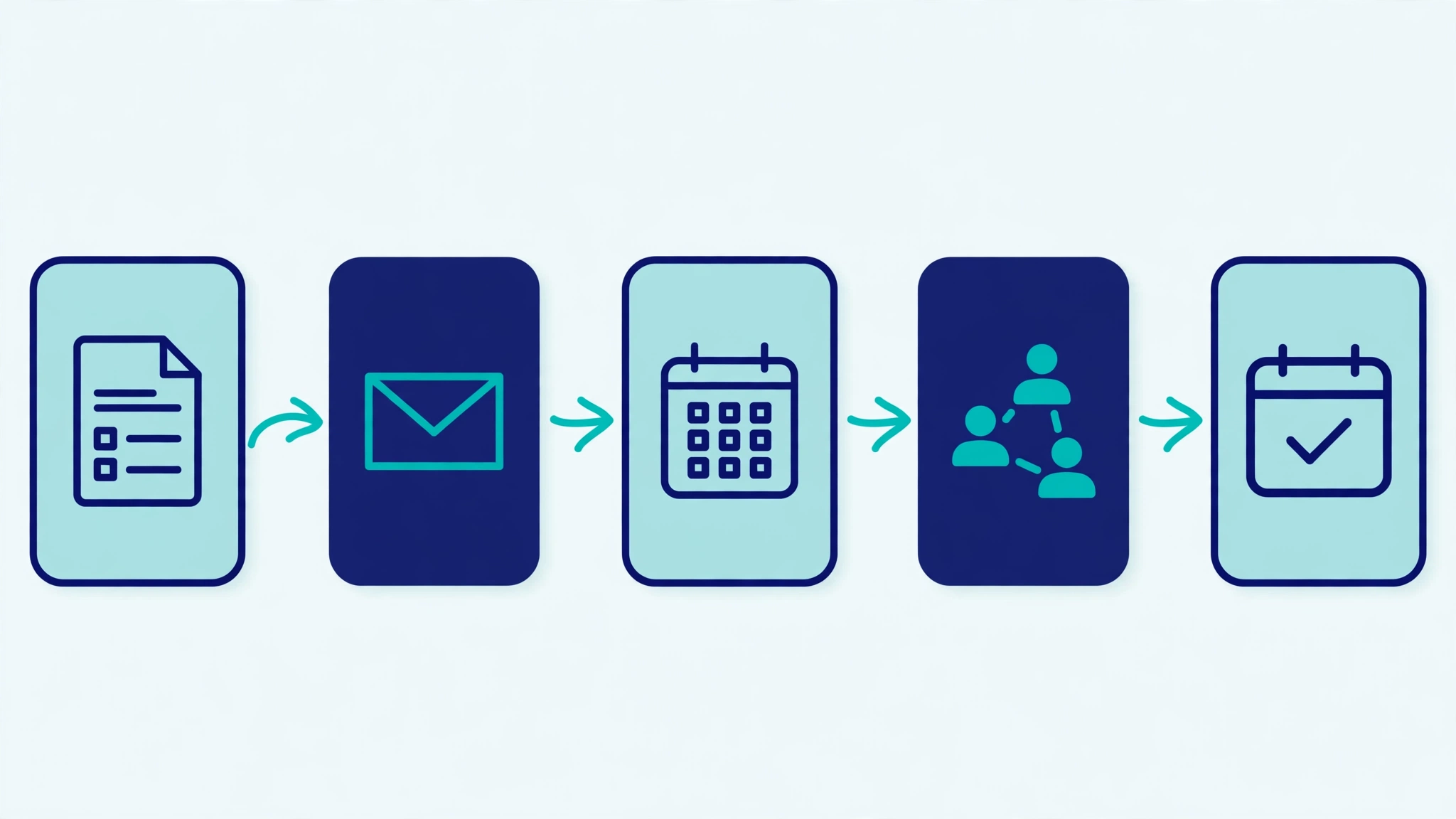
- When a new enquiry arrives - from your website form, your inbox, or a messaging app — Make creates the contact in your CRM, sends an instant reply so the person knows they have been heard, and offers a booking link for a call. If the person books, the appointment lands on your calendar automatically.
Without this workflow, every enquiry waits until someone notices it, copies the details across, and replies by hand. With it, the first response goes out in minutes, even outside working hours, and no enquiry sits unread.
If you build one workflow this week, build this one. It is the backbone of the AI Lead Capture System we build for clients.
2. Form Submission to Spreadsheet, CRM, and Notification
Forms are where enquiries, bookings, and quote requests arrive. The manual version of this job is opening each submission, copying it into a spreadsheet, adding it to the CRM, and telling the right person about it.
The automated version is simple: a new form submission adds a row to your spreadsheet, creates or updates the CRM record, and sends a notification to the person who needs to act on it. Nothing gets missed because nobody had to remember to copy it.
This workflow also keeps your data consistent. When one system holds the enquiry and the CRM holds a different version of it, mistakes follow. One automated path means one version of the truth.
3. Payment Received to Invoice, Thank-You, and Review Request
Getting paid should not create admin work, but it usually does: an invoice to file, a thank-you to send, and a record to update.
With Make, a payment in your payment tool can trigger the invoice to be filed, a thank-you message to be sent, and your records to be updated — all without anyone touching it. A few days later, the same workflow can send a polite request for a review, while the experience is still fresh.
Reviews are worth asking for systematically rather than when someone remembers. A workflow does not forget.
4. New Booking to Calendar, Reminders, and Preparation
A booking is only useful if everyone shows up prepared. The manual version means calendar invites, reminder messages, and digging out the customer's details before the call.
The automated version: a new booking creates the calendar event, sends a confirmation, sends a reminder the day before, and pulls the customer's details into one place for whoever takes the call. If the booking is cancelled or moved, the calendar and the reminders update too.
This is a small workflow with an outsized effect. Missed appointments and no-shows are expensive, and most of them come from poor reminders, not poor intentions.
5. New Lead to Email List and Welcome Sequence
Every lead that never hears from you again is a wasted enquiry. The fifth workflow makes sure that does not happen.
When a new lead is captured, Make adds them to your email list and starts a short welcome sequence: what you do, how you work, and how to book a call. It runs for every lead, every time, without anyone remembering to send it.
Keep the sequence short and useful. A few emails that explain your service and invite a conversation will do more than a long series of sales messages. The point is to stay in touch, not to wear the person out.
How to Start With Make
You do not need all five workflows on day one. Start with the one that costs you the most time right now — usually the enquiry workflow — and get it working end to end before adding the next.
A few practical points before you begin:
- Map the process first. Write down, step by step, what happens today when an enquiry arrives. The workflow should copy the good parts of that process and remove the copying.
- Build one workflow at a time. Test it with real enquiries before moving on. A workflow that mostly works is worse than no workflow, because it fails quietly.
- Plan for failures. What happens if the CRM is down, or an email bounces? Make can notify you when a workflow fails, so set that up from the start.
- Keep it in your accounts. Your workflows should run in your Make account, connected to your tools, so you own them and can change them.
You can try Make for yourself at Make.com. This post contains affiliate links. If you buy through them, I may earn a commission at no extra cost to you.
If you would rather have the whole system built for you — enquiries captured, answered, booked, and followed up — see our workflow automation services and the AI Lead Capture System.
Frequently Asked Questions
What is Make?
Make is a visual automation platform that connects apps and services so they can pass information to each other automatically. You build workflows — called scenarios — by choosing a trigger, such as a new form submission, and the actions that should follow, such as creating a CRM record or sending an email. No coding is required.
Do I need technical skills to use Make?
No. The builder is visual: you drag modules onto a canvas and connect them. What you do need is a clear picture of your own process — what happens today, step by step — so the workflow copies it correctly. If the process is unclear, the automation will be too.
How is Make different from Zapier?
Both connect apps and automate tasks. Make is generally more flexible for multi-step workflows with branching and data handling, and its visual builder makes complex workflows easier to follow. Which one fits depends on the tools you use and the complexity of your workflows.
Can Make replace my CRM or email tool?
No, and it should not try to. Make connects the tools you already use; it does not replace them. Your CRM still holds your contacts, your email tool still sends your mail, and Make moves the information between them.
What happens when a workflow breaks?
Make can notify you when a scenario fails, and it keeps a record of what went wrong. That is why error notifications are worth setting up from day one. A workflow that fails silently will cost you enquiries before anyone notices.
Is workflow automation worth it for a small business?
If your team repeats the same manual steps every day — copying enquiries, sending the same replies, updating the same records — then yes. Start with one workflow, measure the time it saves, and expand from there. Automation earns its keep one workflow at a time.
The Bottom Line
Workflow automation is not about replacing people. It is about removing the copying, pasting, and chasing that fills a small business day, so your team spends its time on the conversations that need a person.
Start with the enquiry workflow, build one workflow at a time, test each one with real enquiries, and set up failure alerts from the start. Five workflows, built properly, can quietly take hours of repetitive work off your week — every week.
See what we build in our AI Lead Capture System, browse our workflow automation services, or contact us to talk about your business.