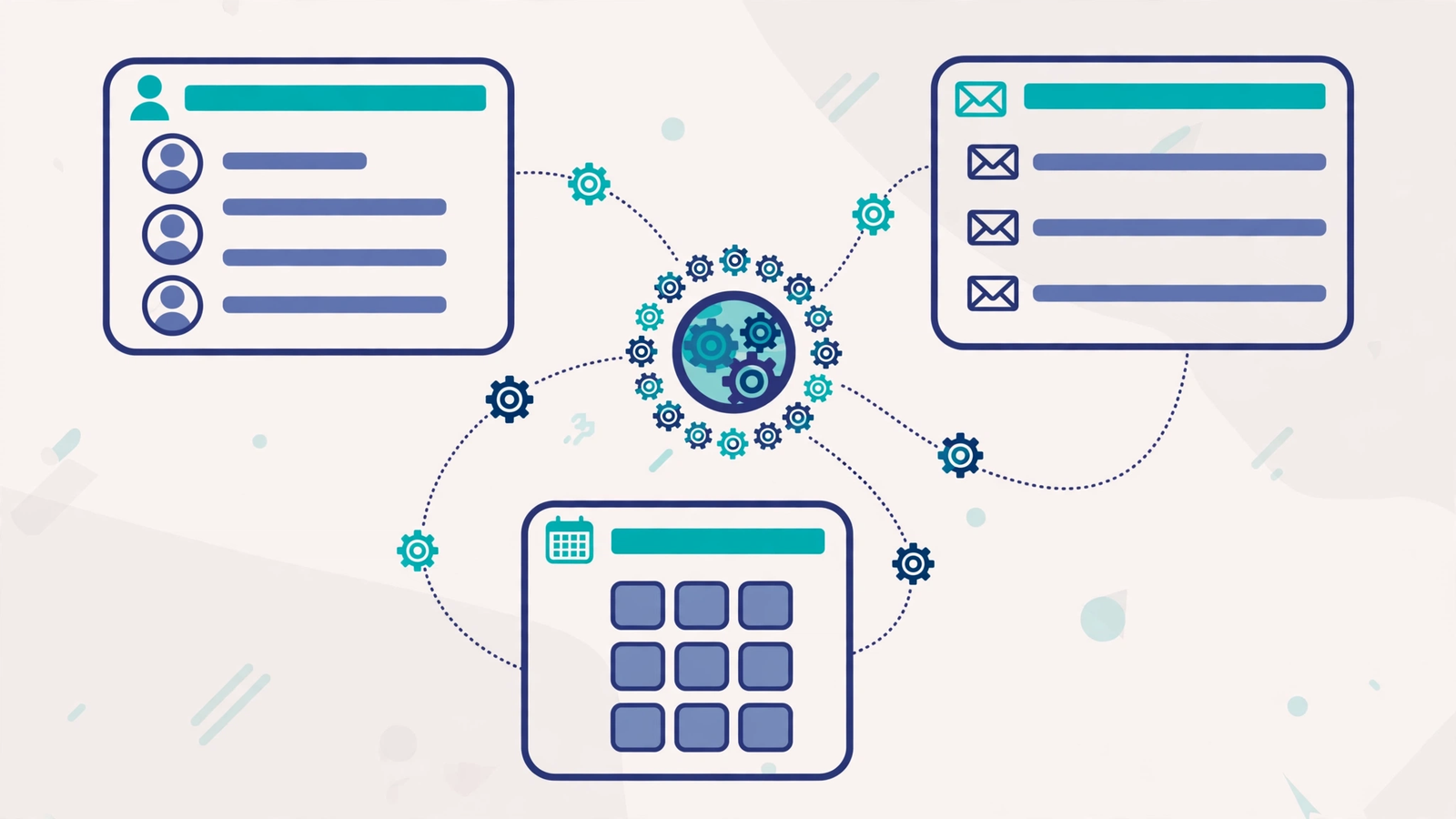
AI Automation Article
How Automation Connects Your CRM, Email and Calendar Into One Workflow
Most small businesses run on three tools: a CRM that holds contacts, an inbox that holds conversations, and a calendar that holds time. Each one works fine on its own. The trouble starts when they do not talk to each other.
An enquiry arrives by email, but nobody logs it in the CRM. A call gets booked, but the calendar invite goes out without the notes from the last conversation. A hot lead waits three days for a reply because the follow-up lived in someone's head instead of in a system.
Automation fixes this by connecting the three tools into one workflow, so information entered once shows up everywhere it is needed. This post explains what that looks like in practice, and what to connect first.
The problem: three tools, three versions of the truth
When your CRM, email and calendar are separate, the same customer exists in three places — and the three copies rarely agree. The CRM says the lead is new. The inbox has a two-week-old thread with them. The calendar shows a meeting that was never logged anywhere.
That is not a people problem. It is a plumbing problem. Every time a person has to copy information from one tool to another, something gets missed, mistyped or forgotten. The fix is to let the tools pass information to each other automatically, so people only enter it once.
What a connected workflow looks like
A connected workflow has one simple rule: enter information once, use it everywhere. Here is how that plays out for a typical enquiry.
1. A new enquiry lands in the CRM automatically
When someone fills in the contact form on your website, automation creates the contact in your CRM straight away, with the source, the message and the time attached. Nobody retypes anything, and no enquiry sits unread in an inbox overnight.
If the same person has contacted you before, the workflow finds the existing record instead of creating a duplicate, so your CRM stays clean without anyone tidying it by hand.
2. Email follows up without anyone remembering
The moment the CRM record is created, the workflow can send a short acknowledgement email — and, if there is no reply, a polite follow-up a day or two later. The follow-up is logged against the contact, so anyone on the team can see exactly what was sent and when.
This is the step that saves the most business. Most enquiries do not go cold because the service was wrong; they go cold because the reply came too late. A connected workflow answers in minutes, every time, even at weekends. Find out how this fits into a full Lead Capture System that answers, qualifies and books without manual chasing.
3. The calendar books itself around real availability
Instead of an email chain trying to find a time, the workflow sends a booking link that reads your real calendar. The prospect picks a slot, the meeting appears on your calendar, and the CRM record is updated with the appointment.
If the meeting is cancelled or moved, the change flows the other way too — the CRM updates, and the follow-up sequence adjusts instead of chasing someone who already booked.
4. Every call, note and email sits in one place
After the call, notes go into the CRM once. From then on, anyone opening the contact sees the full picture: the original enquiry, every email sent, the booked call and what was discussed. Nobody has to ask a colleague what happened, and nobody repeats a question the customer already answered.
What to connect first
- If you are starting from scratch, connect in this order:
- Website form to CRM, so no enquiry is ever lost.
- CRM to email, so follow-ups go out automatically and are logged.
- CRM to calendar, so bookings and reminders stay in sync.
- Email to CRM, so replies attach to the right contact without manual filing.
Each step on its own is useful, but the real payoff comes when all four are live — that is when the workflow stops being a set of tools and starts being one system. Our system integrations service connects these tools for agencies, freelancers and small businesses.
Common mistakes that break the connection
- Connecting everything at once. Start with the enquiry flow, prove it works, then add the next link.
- Letting duplicates pile up. Decide how the workflow matches an existing contact before you switch it on.
- Automating bad data. If your CRM is full of half-finished records, fix the fields first or the automation will copy the mess everywhere.
- No one owning the system. One person should check the workflow each week — a five-minute look at failed runs catches most problems early.
Frequently Asked Questions
What tools do I need to connect my CRM, email and calendar?
You need a CRM, an email tool and a calendar that each offer an integration or an automation connector. Most popular tools do. The connector sits between them and moves the data — you do not need to replace tools you already like.
Do I need a developer to set this up?
For a simple form-to-CRM-to-email flow, usually not. Most automation tools offer ready-made connectors you can set up in an afternoon. The calendar and two-way sync steps are the ones where a specialist earns their fee, especially if your CRM is heavily customised.
Will automation make my follow-ups feel impersonal?
Only if you write them that way. Short, specific messages that reference the enquiry itself read like a person wrote them. Long, generic sequences do not. Keep automated emails to one or two sentences and let the human reply do the rest.
What happens if the automation breaks?
A good setup logs every run, so a failed step shows up in a log instead of vanishing silently. Check the log weekly, and set up an alert for failures on the enquiry step — that is the one step you never want to miss.
How long does it take to connect everything?
- A basic connection - form to CRM to email — can be live in a day. A full setup with two-way calendar sync and logged calls usually takes a week or two, including testing. Start with the basic version and add the rest once it is working.